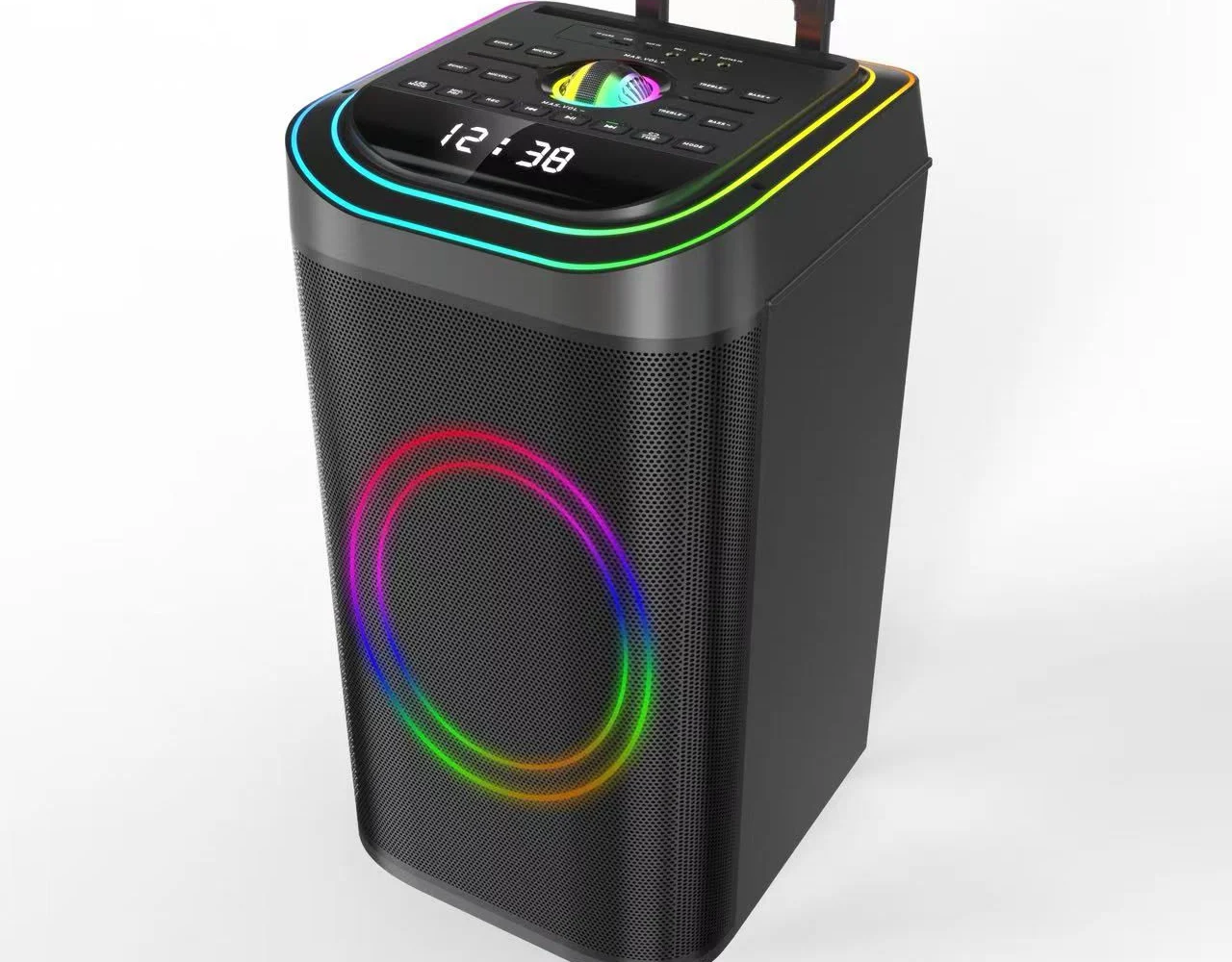
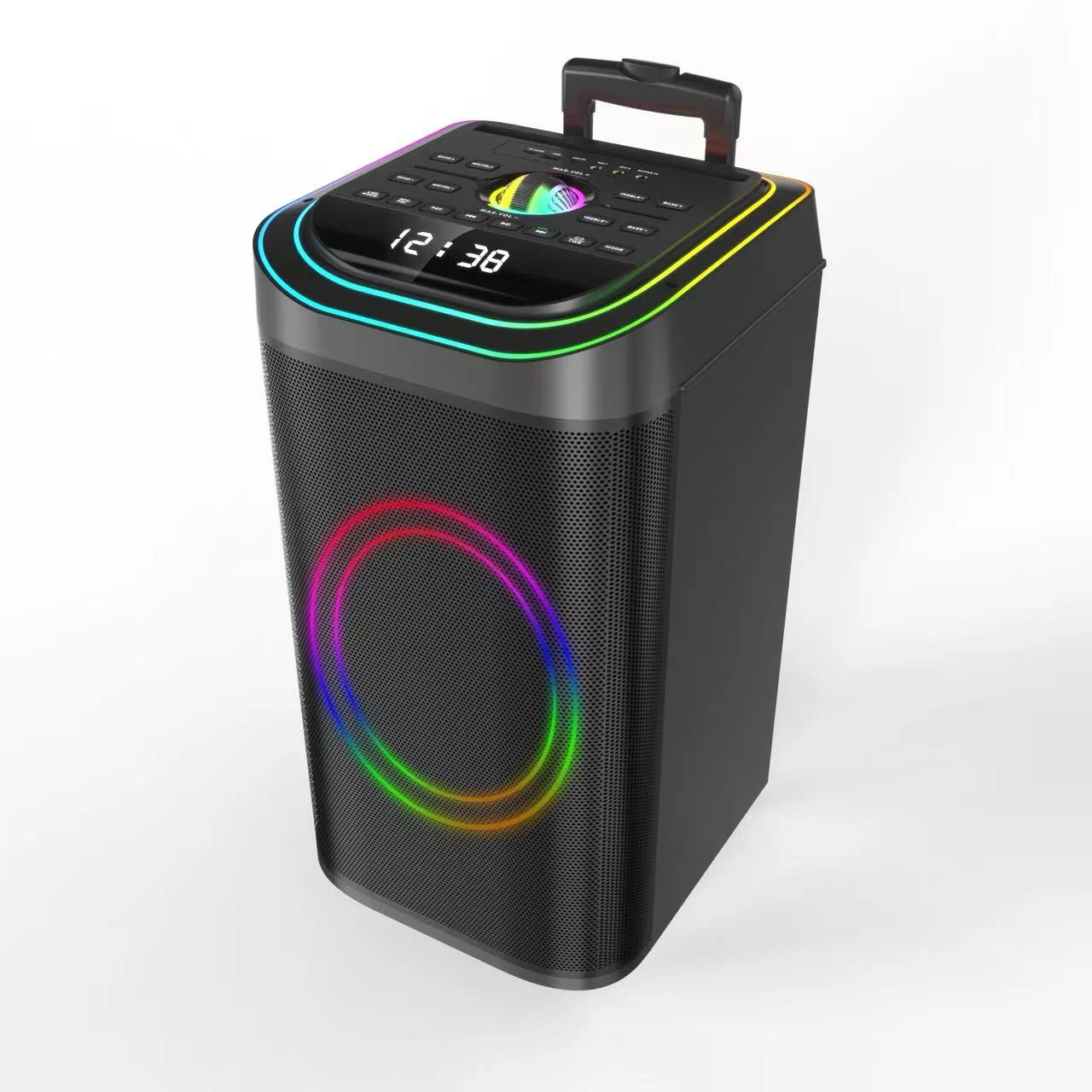
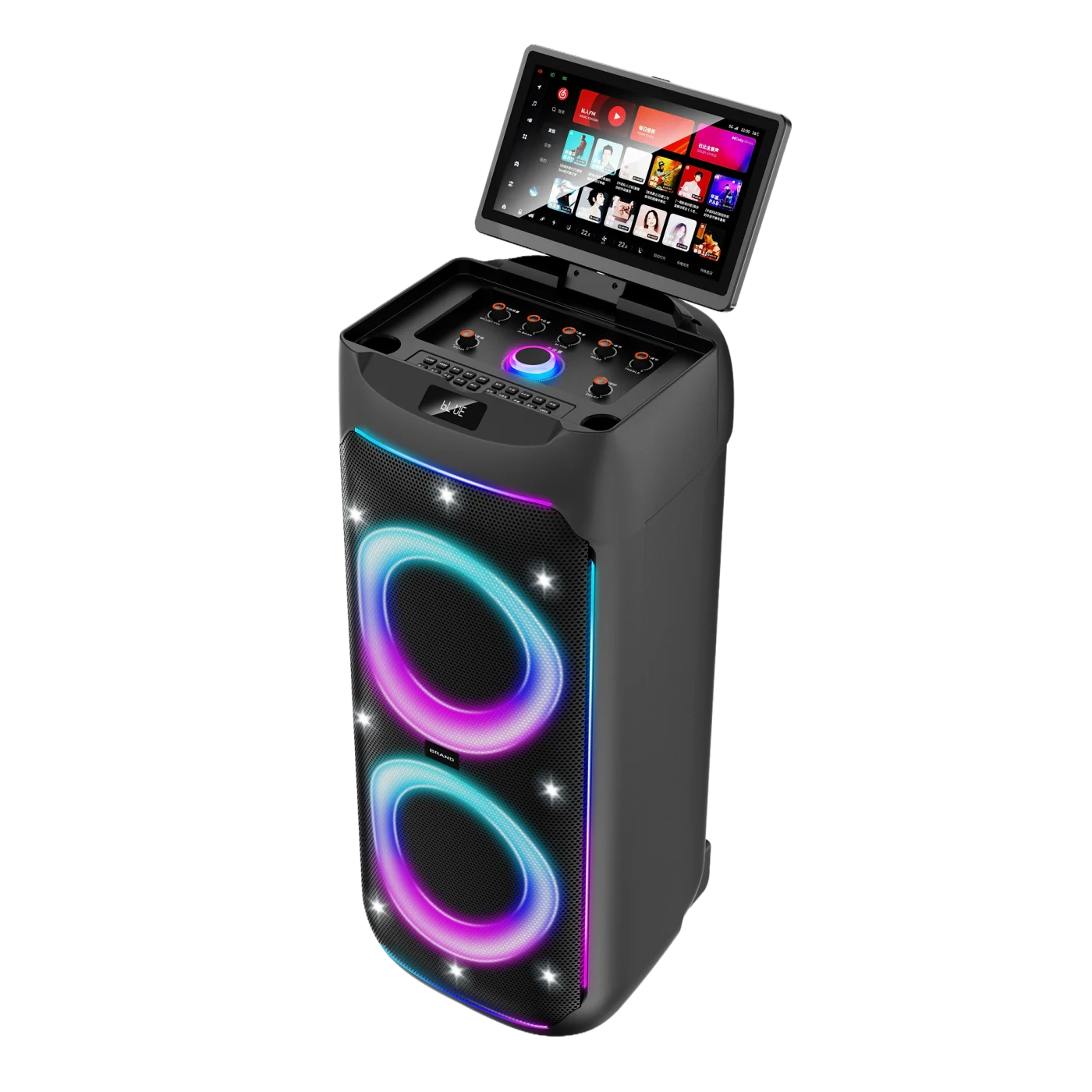
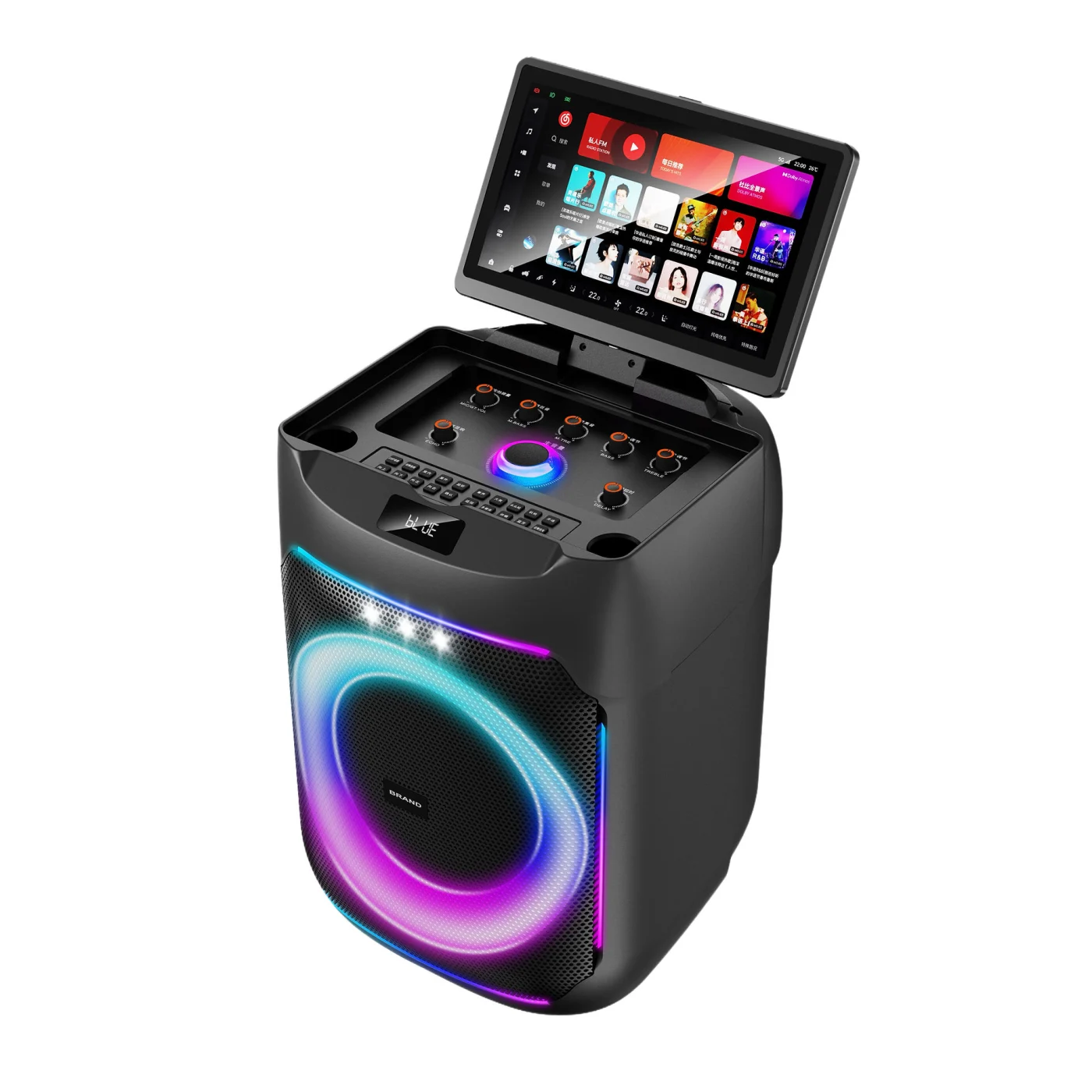
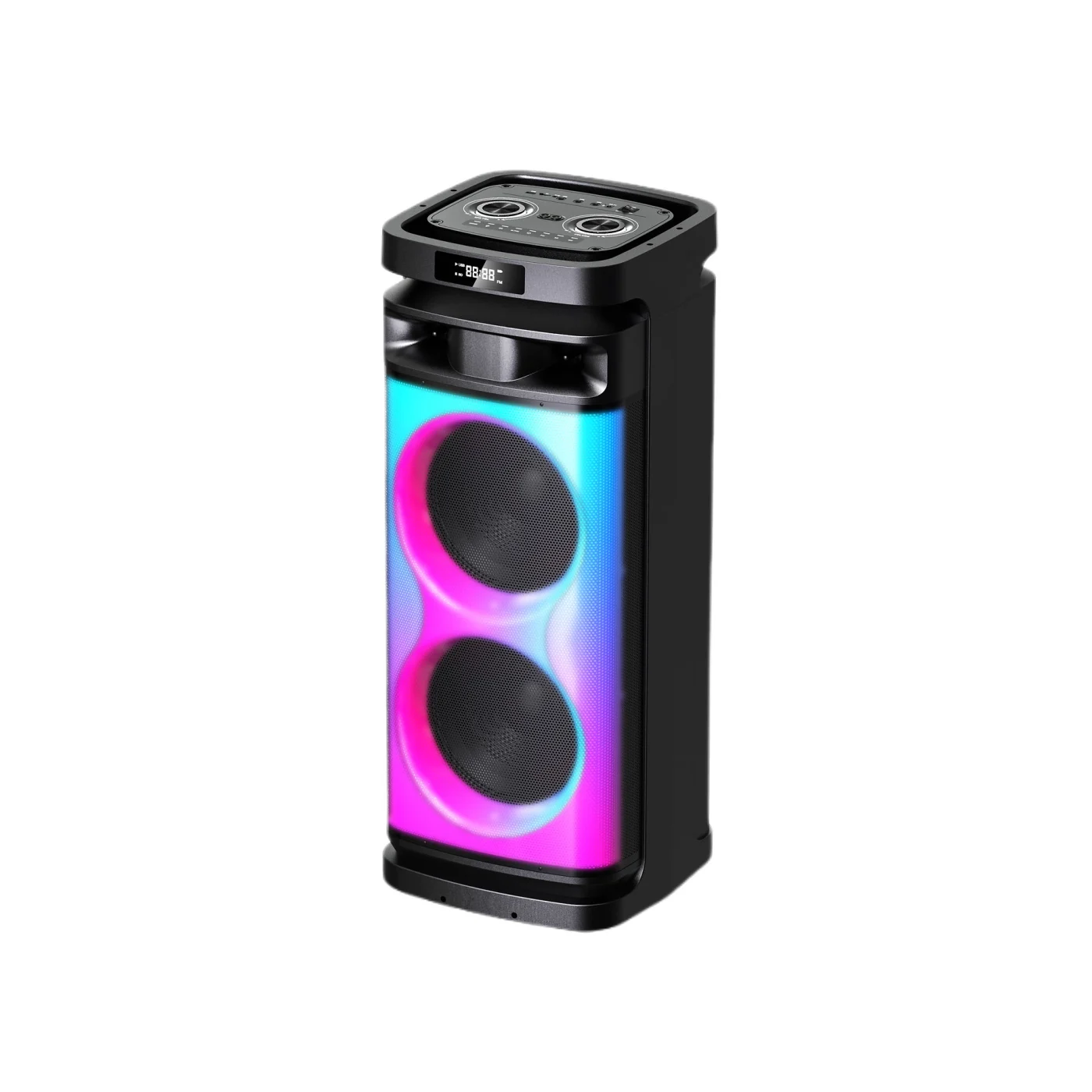
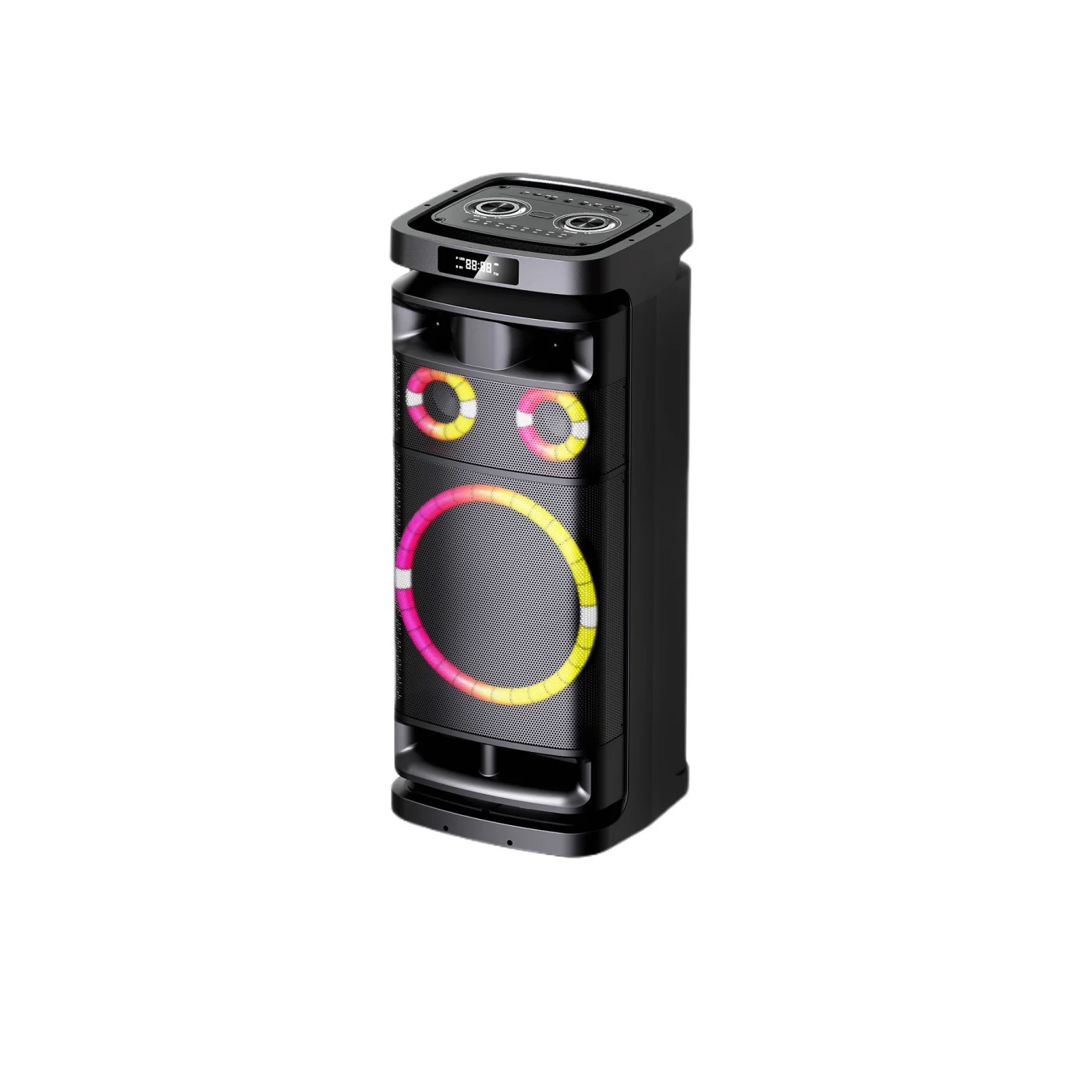
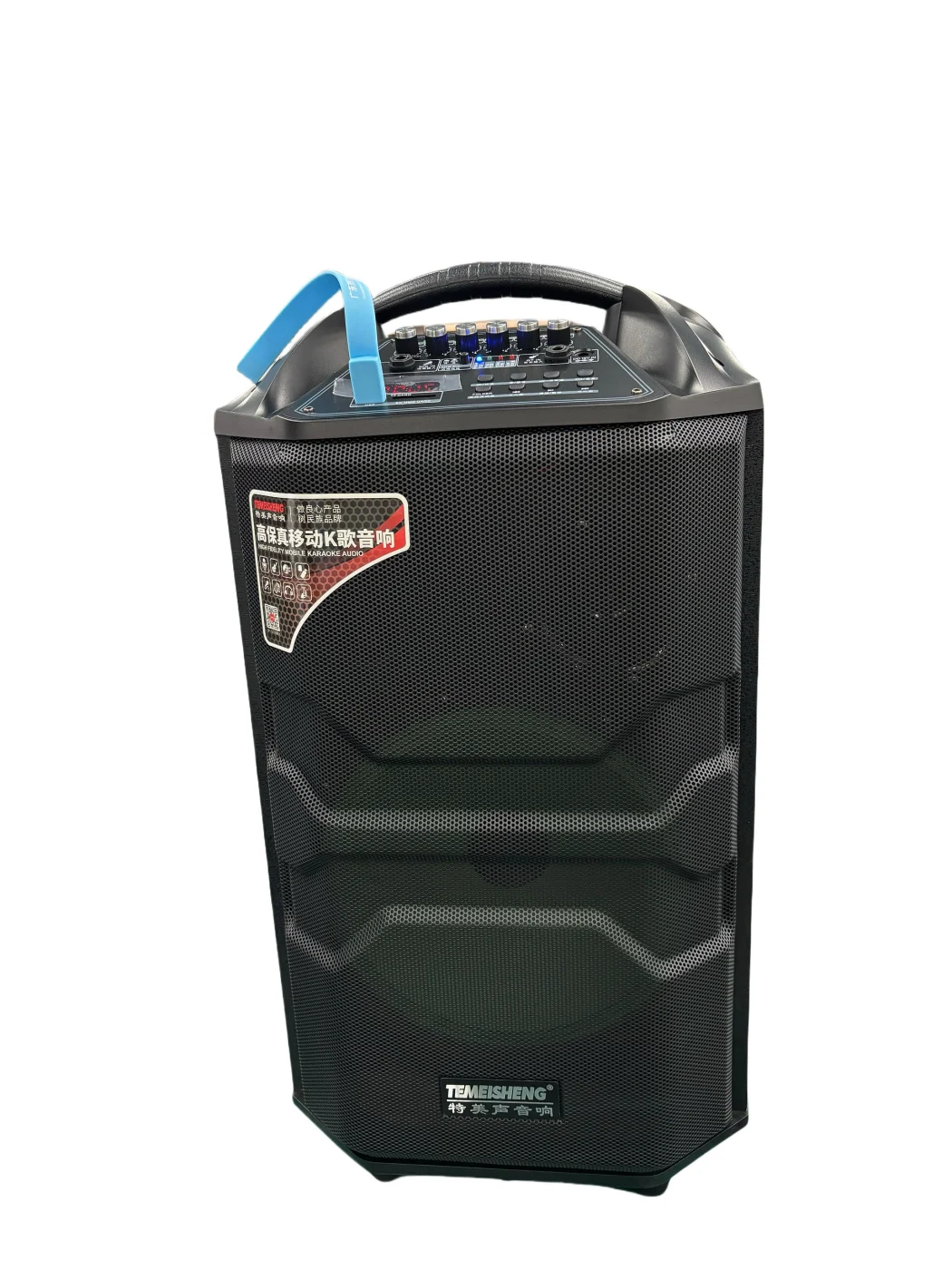
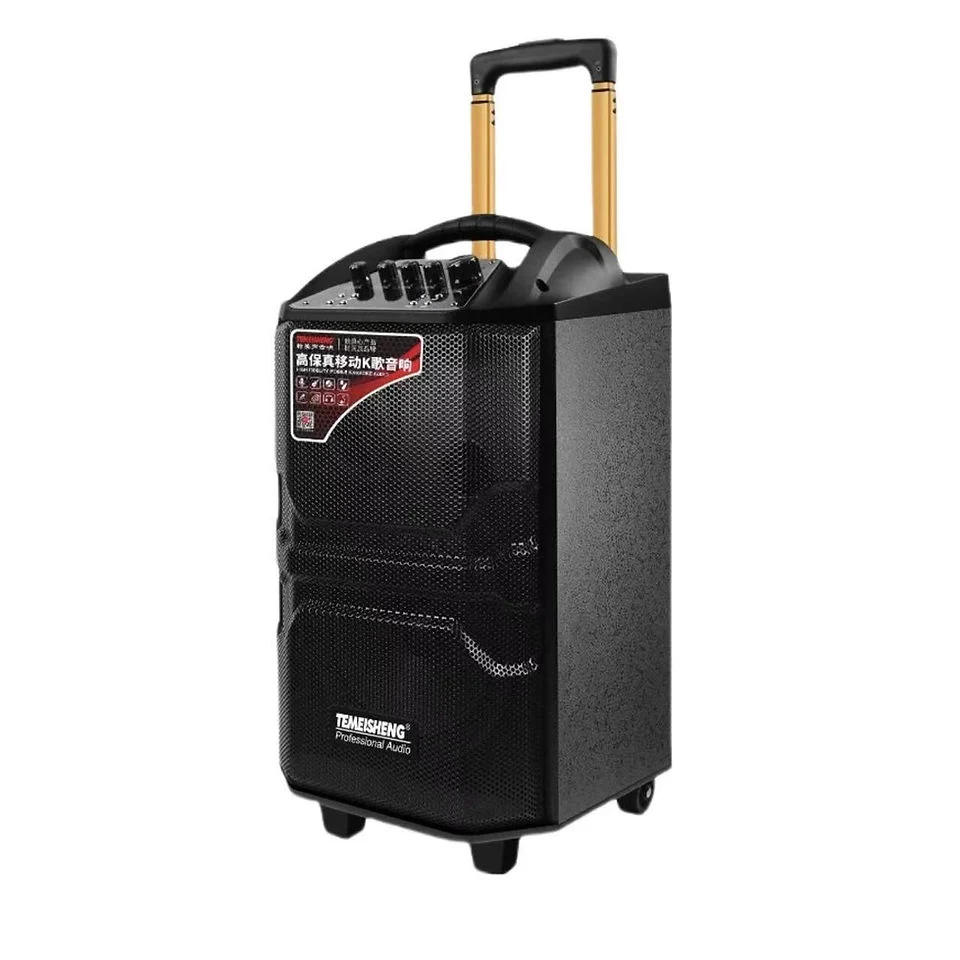
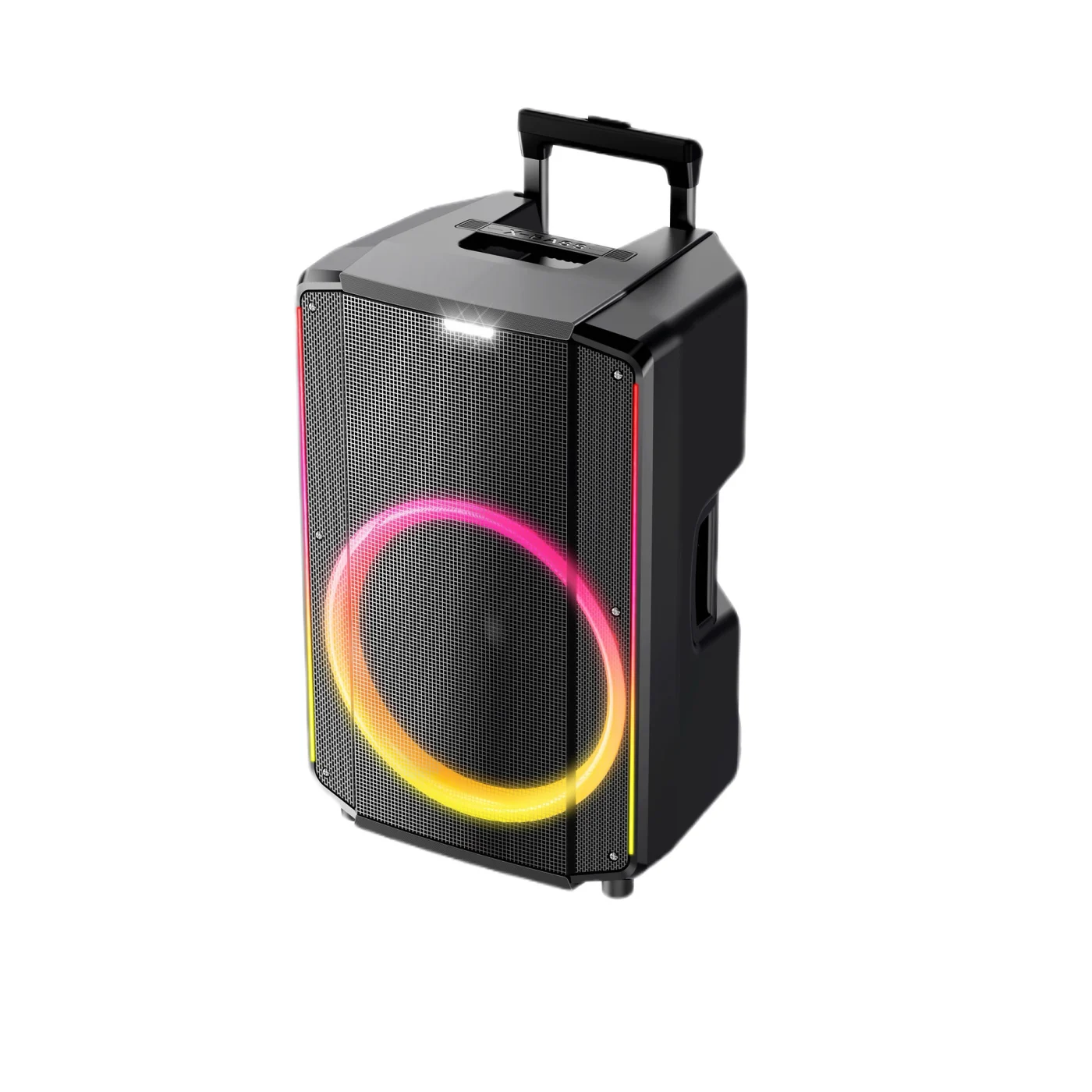
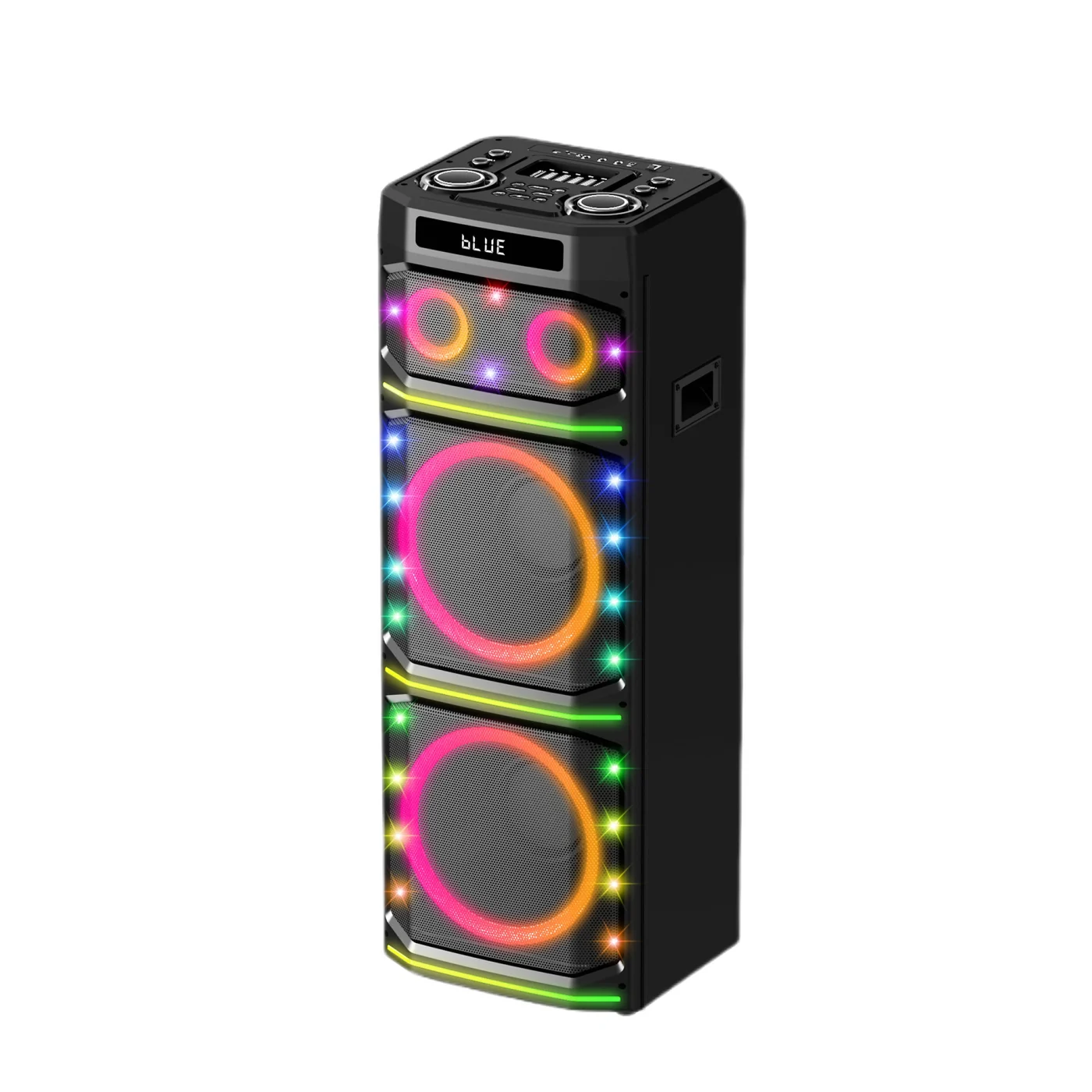
Trolley speakers, celebrated for their portability and powerful sound, are the quintessential audio solution for parties, outdoor events, and dynamic gatherings. However, the very wireless convenience they offer can sometimes lead to frustrating connectivity issues. When your reliable trolley speaker suddenly refuses to pair, drops connection unexpectedly, or simply remains undiscoverable by your device, it can cast a shadow over any occasion. As a veteran manufacturer with over 25 years of experience in audio technology and a leading name in China’s speaker production landscape, Party Speaker Factory deeply understands the critical importance of seamless audio. This guide is meticulously crafted to address the common connection problems users encounter with their trolley speakers, offering clear, actionable, and expert-driven solutions. For those seeking robust and dependable audio manufacturing partners, our expertise in producing high-quality trolley speakers, such as our HJT-21208A model, underpins our commitment to excellence.
Understanding Trolley Speaker Connectivity
Trolley speakers are engineered for maximum versatility, often incorporating multiple connection methods to cater to a wide array of audio sources. This inherent versatility, however, can also introduce potential complexities. Understanding these underlying aspects is the first step toward effective troubleshooting.
Why Trolley Speakers Are Prone to Connectivity Issues
The reliance on wireless technologies like Bluetooth and Wi-Fi, while liberating, introduces inherent vulnerabilities. These signals are susceptible to interference, range limitations, and protocol conflicts. Furthermore, the intricate integration of various components within a trolley speaker – from the mainboard and Bluetooth module to the power supply and speaker drivers – means that a fault in any single area can cascade and affect connectivity. Unlike simpler, static speakers, the complex internal architecture and external wireless interfaces of a trolley speaker present a larger surface area for potential issues. The mainboard acts as the central nervous system, the Bluetooth module is the wireless gateway, and the power supply ensures each component receives stable energy; any instability here can manifest as connectivity problems.
Common Scenarios and User Frustrations with Trolley Speaker Connections
Users frequently report scenarios such as:
- The speaker suddenly disconnecting mid-song.
- The device not being able to find the speaker at all during pairing attempts.
- Intermittent audio dropouts, making the listening experience unbearable.
- Difficulty connecting to multiple devices or switching between them.
- The speaker appearing in the device’s Bluetooth list but failing to establish a stable link.
These frustrations stem from the expectation of plug-and-play simplicity that wireless audio promises, an expectation that can be shattered when technical glitches arise.
The Importance of Reliable Connectivity for the Trolley Speaker Experience
At its core, the appeal of a trolley speaker lies in its ability to deliver high-quality audio wirelessly and portably. If the connection is unreliable, this core value proposition is undermined. For outdoor events, parties, or mobile presentations, a stable connection is not just a convenience; it’s essential for the entire experience. It ensures uninterrupted music, clear announcements, or immersive movie sound without the hassle of tangled wires or sudden silences. A dependable connection transforms a good speaker into a great audio companion.
Common Causes for Trolley Speaker Connectivity Problems
When a trolley speaker fails to connect, it’s rarely a random occurrence. A systematic approach to identifying the underlying cause is key. These are the most frequent culprits behind your audio woes:
Bluetooth Interference: Identifying and Mitigating Common Sources
Bluetooth operates on the 2.4 GHz frequency band, which is also used by many other common devices. This can lead to congestion and interference.
- Other Wireless Devices: Wi-Fi routers (especially older ones operating on 2.4 GHz), microwaves, cordless phones, wireless keyboards, mice, and even other Bluetooth devices in close proximity can disrupt the signal.
- Physical Obstructions: Walls (especially concrete or brick), large metal objects, and even dense human crowds can attenuate Bluetooth signals.
- Distance: While Bluetooth has improved, its effective range is finite. Exceeding the recommended distance between your source device and the trolley speaker will inevitably lead to connection instability.
Mitigation: Try moving your source device closer to the speaker, away from potential sources of interference. Turn off other unused Bluetooth devices. If possible, ensure your Wi-Fi router is on the less congested 5 GHz band.
Device Compatibility and Settings: Ensuring Your Source Device is Properly Configured and Compatible
The problem might not always be with the speaker itself.
- Source Device Bluetooth: Ensure Bluetooth is enabled on your phone, tablet, or laptop. Check that the Bluetooth version of your source device is compatible with the speaker’s Bluetooth version (though most modern devices are backward compatible, older versions might have limitations).
- Operating System Glitches: Sometimes, a temporary glitch in your device’s operating system can affect Bluetooth performance. A simple restart of your source device can often resolve this.
- App Permissions: Ensure any music or audio apps have the necessary permissions to access Bluetooth or output audio.
Trolley Speaker Battery Levels: The Impact of Low Power on Bluetooth Stability
A common oversight is the battery status of both the speaker and the source device.
- Speaker Battery: When a trolley speaker’s battery is critically low, its internal components, including the Bluetooth module, may not receive sufficient power to operate reliably. This can lead to dropped connections or an inability to pair altogether. Always ensure your trolley speaker is adequately charged before attempting to connect.
- Source Device Battery: While less common, a severely depleted battery on your phone or tablet can also sometimes lead to erratic Bluetooth behavior.
Outdated Firmware/Software: How Firmware Updates Can Resolve Known Connection Bugs
Manufacturers release firmware updates for their audio devices to fix bugs, improve performance, and add new features.
- Speaker Firmware: Outdated firmware on your trolley speaker can be a significant cause of connectivity issues, including pairing problems, dropped connections, or poor audio quality. If the manufacturer provides a method to update the speaker’s firmware (often via a companion app or a direct connection to a computer), this should be a priority. For example, ensuring your trolley speaker HJT-2120B is running the latest software can prevent many common headaches.
- Source Device Software: Similarly, ensure your smartphone, tablet, or computer’s operating system and Bluetooth drivers are up to date.
Physical Damage or Faults: Recognizing Potential Hardware Issues with the Speaker or Source Device
While less frequent, physical damage or component failure can be the culprit.
- Speaker Damage: Inspect the trolley speaker for any visible signs of damage, such as dents, cracks, or loose ports. A fall or impact could have dislodged internal components or damaged the Bluetooth antenna.
- Source Device Damage: While rare, physical damage to a source device’s Bluetooth antenna or internal circuitry could also be the cause.
Environmental Factors: How Wi-Fi Congestion or Other Wireless Signals Can Affect Connectivity
Beyond direct Bluetooth interference, the general wireless environment plays a role.
- Network Congestion: In crowded areas with many Wi-Fi networks operating on overlapping channels, wireless communication can become significantly degraded. This is particularly relevant if your trolley speaker also supports Wi-Fi connectivity.
- Other Radio Frequencies: While less common for typical consumer use, strong radio frequency transmissions from industrial equipment or certain communication systems could theoretically interfere.
Step-by-Step Troubleshooting for Trolley Speaker Connection Failures
When you encounter a connectivity problem, don’t panic. Follow these methodical steps to diagnose and resolve the issue.
-
Initial Checks: Quick Fixes to Try First (Reboot, Check Volume, Correct Input)
- Reboot Everything: Rebooting is the “master reset” for many transient software glitches, forcing a refresh of device memory and clearing potential communication conflicts. Turn off your trolley speaker completely, then turn off Bluetooth on your source device. Wait for about 30 seconds, then turn your source device’s Bluetooth back on, and finally, power on your trolley speaker.
- Check Volume Levels: Ensure the volume on both your source device and the trolley speaker is turned up. A common mistake is having one of them muted or set to a very low volume.
- Correct Input Mode: Some trolley speakers have multiple input options (Bluetooth, AUX, USB, etc.). Make sure the speaker is set to the correct input mode for your desired connection. If you’re trying to connect via Bluetooth, ensure Bluetooth mode is selected.
-
Re-pairing Your Trolley Speaker: A Detailed Guide to Unpairing and Re-pairing Devices
This process effectively gives your devices a fresh start with each other, resolving issues stemming from corrupted pairing data.
- On Your Source Device:
- Go to your device’s Bluetooth settings.
- Find the name of your trolley speaker in the list of paired or available devices.
- Tap on the speaker’s name and select “Forget Device,” “Unpair,” or “Remove.”
- On Your Trolley Speaker:
- Ensure the speaker is discoverable. Some speakers automatically enter pairing mode when turned on if no device is connected. Others may require you to press and hold a dedicated Bluetooth or pairing button. Consult your speaker’s manual if unsure.
- Re-pair:
- On your source device, scan for new Bluetooth devices.
- Select your trolley speaker from the list when it appears.
- If prompted for a passcode, try the common default codes like “0000” or “1234,” or refer to your speaker’s manual.
- Once paired, you should see a confirmation on both devices, and your speaker should now play audio.
- On Your Source Device:
-
Resetting Your Trolley Speaker: When and How to Perform a Factory Reset
A factory reset returns the speaker to its original, out-of-the-box state, clearing all previous pairings and settings, which can resolve persistent software glitches.
- When to Reset: This is a more drastic step and should be used when simple re-pairing fails, or if the speaker exhibits erratic behavior not attributable to interference or basic settings.
- How to Reset: The method varies greatly between models and manufacturers. Common methods include:
- Pressing and holding a specific button (often the power button, Bluetooth button, or a combination of buttons) for an extended period (e.g., 10-15 seconds) while the speaker is on or off.
- Using a pin or paperclip to press a recessed reset button, often found on the back or bottom of the speaker.
- Some advanced models might have a reset option within a companion app.
Important: Always consult your trolley speaker’s user manual for the exact reset procedure. After a reset, you will need to re-pair your speaker with all your devices from scratch.
-
Troubleshooting Bluetooth Connections: Specific Steps for Pairing and Maintaining Bluetooth Links
Once the speaker is discoverable, a stable Bluetooth connection relies on several factors.
- Ensure Discoverability: Most speakers have an indicator light or sound cue to show they are in pairing mode. Make sure this is active.
- Device Proximity: Keep your source device and speaker within a few feet of each other during the initial pairing process. Once paired, you can usually move further apart, but stay within the recommended range for optimal performance.
- Clear Paired List: If your speaker has been connected to many devices previously, its memory might be full or corrupted. The speaker can typically store a limited number of paired devices. When this limit is reached, older pairings may be automatically deleted to make room for new ones. Performing a factory reset (as described above) is often the best way to clear this list and ensure a fresh connection.
- Check for Multipoint Pairing Issues: If your speaker supports connecting to two devices simultaneously (multipoint), a conflict between devices trying to take precedence can occur. Try disconnecting one device before attempting to connect the other.
-
Addressing Wi-Fi Connectivity Issues (If Applicable): Connecting to Networks and Resolving Network-Specific Problems
Some advanced trolley speakers also offer Wi-Fi connectivity for features like music streaming services or multi-room audio.
- Network Credentials: Ensure you are entering the correct Wi-Fi network name (SSID) and password.
- Signal Strength: Like any Wi-Fi device, the speaker needs a strong signal. Place it within a reasonable range of your router.
- Router Settings: Ensure your router is not blocking new devices or using MAC address filtering that prevents the speaker from connecting. Some routers have separate 2.4 GHz and 5 GHz bands; try connecting the speaker to the 2.4 GHz band, as it generally offers better range and penetration.
- Firmware Updates: Wi-Fi connectivity is often improved through firmware updates.
-
Testing with Different Devices: Isolating the Issue to the Speaker or the Source Device
This is a crucial diagnostic step to pinpoint where the problem lies.
- Try Another Bluetooth Source: Attempt to connect your trolley speaker to a different smartphone, tablet, or laptop.
- If the speaker connects successfully to another device, the issue is likely with your original source device (its Bluetooth hardware, software, or settings). Consider updating its Bluetooth drivers or checking its specific Bluetooth settings, such as the potential use of LE Audio.
- If the speaker still fails to connect to multiple devices, the problem is almost certainly with the trolley speaker itself.
- Try Another Bluetooth Device with Your Speaker: If possible, try connecting your source device to a different Bluetooth speaker or headphones. If your source device struggles to connect to multiple devices, it’s likely the source device that needs attention.
- Try Another Bluetooth Source: Attempt to connect your trolley speaker to a different smartphone, tablet, or laptop.
Advanced Troubleshooting and Maintenance
Once the basic troubleshooting steps have been exhausted, consider these more in-depth approaches to ensure your trolley speaker performs optimally and to prevent future issues.
Checking and Updating Trolley Speaker Firmware
Many modern trolley speakers, especially those with advanced features, are managed via a companion mobile app. This app is often the primary tool for checking and installing firmware updates.
- Locate the App: Search your device’s app store for the official app associated with your trolley speaker brand or model.
- Connect and Check: Ensure your speaker is connected via Bluetooth to your phone. Open the app and navigate to the device settings or firmware update section. The app will typically check for available updates automatically or provide an option to do so.
- Installation: If an update is available, follow the on-screen instructions carefully. This usually involves keeping the speaker and your phone close together and ensuring both have sufficient battery power. Firmware updates are critical for resolving connectivity bugs and improving overall performance. If you are using a Party Speaker Factory speaker like the HJP-1225A karaoke trolley speaker, the official app is the most direct route to ensuring optimal performance.
Understanding and Managing Audio Device Connection Limits
Trolley speakers, like most Bluetooth devices, have limitations on how many devices they can connect to or manage simultaneously.
- Paired Device Memory: While the exact number varies, most speakers can store a certain number of previously paired devices. Once this limit is reached, older pairings might be automatically removed to make way for new ones. If you frequently connect to numerous devices, it’s wise to periodically “forget” devices you no longer use from both your speaker’s and your source devices’ Bluetooth lists.
- Simultaneous Connections (Multipoint): Speakers with multipoint connectivity allow two devices to be connected at once. While convenient, this can sometimes lead to confusion or conflicts if not managed properly. For example, if you’re playing music from your tablet and a call comes in on your phone, the speaker might switch audio sources unexpectedly. To avoid this, consider disconnecting one device if you are experiencing issues.
When to Seek Professional Help or Contact Manufacturer Support
If you’ve diligently followed all the troubleshooting steps and your trolley speaker still refuses to connect, it’s time to escalate.
- User Manual: Revisit your user manual. It might contain model-specific troubleshooting tips or contact information for support.
- Manufacturer Website: Check the official website of your trolley speaker’s manufacturer. They often have a dedicated support or FAQ section, drivers, firmware updates, and customer service contact details.
- Warranty: If your speaker is still under warranty, contacting the manufacturer directly is often the most efficient route to repair or replacement. Be prepared to provide the model number, serial number, and a detailed description of the problem.
Tips for Maintaining Optimal Connectivity for Your Trolley Speaker
Proactive measures can significantly reduce the likelihood of future connection problems.
- Charge Adequately: Always ensure your trolley speaker is sufficiently charged before use. Low battery levels are a common cause of unstable wireless connections.
- Keep Firmware Updated: Regularly check for and install firmware updates via the manufacturer’s app.
- Manage Your Bluetooth Environment: Be mindful of the number of active Bluetooth and Wi-Fi devices in your immediate vicinity, especially in crowded wireless environments.
- Store Properly: When not in use, store your trolley speaker in a safe place, away from extreme temperatures, moisture, or potential physical damage.
- Clean Regularly: Dust and debris can sometimes interfere with ports or internal components. Gently clean the speaker, especially any ports, with a soft, dry cloth.
Specific Trolley Speaker Connectivity Scenarios and Solutions
Let’s dive into some common, real-world scenarios users face and how to tackle them.
Case Study 1: My Trolley Speaker Keeps Disconnecting From My Phone
This is a classic sign of interference or range issues.
Solution: First, move your phone closer to the speaker, ideally within 10-15 feet, and ensure there are no major physical obstructions between them (like thick walls). Next, check if any other devices in the vicinity (microwaves, Wi-Fi routers, other Bluetooth devices) might be causing interference. Try temporarily disabling other Bluetooth devices. If the problem persists, consider re-pairing your phone with the speaker. If it’s a recurring issue, check for firmware updates for both your phone and the speaker. As a next step, investigate your phone’s Bluetooth settings to see if options like “LE Audio” are enabled and if toggling them makes a difference.
Case Study 2: Unable to Pair a New Device With My Trolley Speaker
This often indicates that the speaker’s memory is full, or it’s not in discoverable pairing mode.
Solution: First, ensure the speaker is actively in pairing mode (check for an indicator light or sound cue). If it is, and still not found, try a factory reset of the trolley speaker. This will clear its memory of all previous pairings, allowing it to be discovered by a new device. On your new device, “forget” any previous attempts to connect to the speaker before scanning again.
Case Study 3: Sound Cuts Out Intermittently From My Trolley Speaker
Intermittent audio dropouts can be frustrating and point to a weak or unstable connection.
Solution: Similar to Case Study 1, check for interference and distance. Ensure your source device’s battery is not critically low, as this can sometimes affect Bluetooth performance. If you’re using a Wi-Fi-connected speaker, check your Wi-Fi signal strength. Performing a firmware update for the speaker might also resolve underlying software issues causing connection instability. If the problem persists with multiple source devices and in different locations, it could indicate a faulty Bluetooth module within the speaker.
Case Study 4: Trolley Speaker Not Found By My Laptop/Tablet
This could be an issue with the speaker’s discoverability, your laptop/tablet’s Bluetooth, or a specific driver problem.
Solution: Confirm that your trolley speaker is indeed in pairing/discoverable mode. Then, on your laptop or tablet, go into Bluetooth settings and ensure Bluetooth is enabled and that you are initiating a scan for new devices. If your laptop is having trouble finding any Bluetooth devices, try updating its Bluetooth drivers through the manufacturer’s website or your operating system’s update utility. If the speaker works with your phone but not your laptop, the issue likely lies with your laptop’s Bluetooth. A factory reset of the speaker and a fresh pairing attempt on the laptop are good next steps. Exploring our diverse range, such as the HJT-2120B or HJP-1225A karaoke trolley speaker, can provide context on the connectivity features of different trolley speaker models.
Frequently Asked Questions About Trolley Speaker Connectivity
To further clarify common queries, here are answers to frequently asked questions regarding trolley speaker connectivity.
Can I connect multiple devices to my trolley speaker simultaneously?
Many modern trolley speakers support multipoint connectivity, allowing you to connect two devices at the same time. However, only one device can typically be active for audio playback at a time. If you connect a second device, it usually acts as a backup, ready to take over if, for example, a phone call comes in while you’re listening to music from your tablet.
What is the optimal range for my trolley speaker’s Bluetooth connection?
The optimal range for Bluetooth connections is generally considered to be around 30 feet (10 meters) in open spaces. However, this can be significantly reduced by physical obstructions (walls, furniture) and interference from other electronic devices. For the most stable connection, it’s best to keep your source device and speaker within a closer proximity, especially in busy environments.
How do I know if my trolley speaker’s firmware is up to date?
The most reliable way to check and update your trolley speaker’s firmware is by using the manufacturer’s dedicated mobile app. If your speaker has an app, download it, connect your speaker via Bluetooth, and look for a “Settings,” “Device Information,” or “Firmware Update” section within the app. The app will indicate if an update is available.
Are there specific compatibility issues between trolley speakers and certain operating systems or devices?
While Bluetooth is designed for broad compatibility, older operating systems or devices with outdated Bluetooth standards might experience issues. Generally, trolley speakers are compatible with most modern smartphones, tablets, and computers running recent versions of iOS, Android, Windows, and macOS. However, if you encounter persistent problems with a specific device or operating system, ensuring both the speaker and the device have the latest software and firmware updates is crucial. Bluetooth versions (e.g., Bluetooth 4.0 vs. 5.0) and supported audio codecs (like aptX, LDAC) can influence connection stability and audio quality. If you are considering manufacturing new trolley speaker models, understanding these compatibility factors is essential, a domain where Party Speaker Factory’s extensive OEM/ODM experience shines, offering solutions across our series 4 karaoke trolley speakers and broader series 6 trolley speaker (8-15 inch).
By understanding these common causes, following the step-by-step troubleshooting process, and employing proactive maintenance, you can significantly improve your trolley speaker’s connectivity and ensure your audio experiences are always seamless and enjoyable.